Guides » Getting Started
Getting Started
Interface
Interface
@continue($seenLinklist)Panels
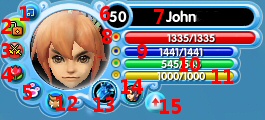
Character Information Panel
- 1
- Minimize/Maximize: Shows/hides the Character Information Panel.
- 2
- Safety Lock: Opens the Safety Lock settings screen.
- 3
- PvP Protection: Opens the PvP Protection settings screen.
- 4
- Karma: Mouse-over to check your Karma stats and how many Praises/Admonishes you have left for the day.
- 5
- Mini Pet Bar: Shows/hides the mini pet bar
- 6
- Level: Shows your character's level.
- 7
- Name: Shows your character's in-game name.
- 8
- Health: Shows your current remaining health.
- 9
- Mana: Shows your current remaining mana.
- 10
- Vigor: Shows your current remaining vigor.
- 11
- Essence: Shows your current remaining essence.
- 12
- Target Priority: Sets players or monsters to be tab targeted first.
- 13
- Class: Shows your character's class.
- 14
- Race: Shows your character's race.
- 15
- Level Up: This blinks when you have points that you can assign.
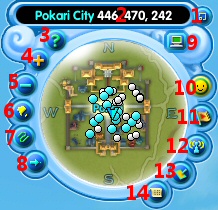
Mini-map
- 1
- Minimize/Maximize: Shows/hides the minimap.
- 2
- Location: Shows the name and coordinates of your character's current position.
- 3
- Legend: Opens the mini-map legend which shows the meaning of the map's icons.
- 4
- Zoom In: Lets you see more of what's around you.
- 5
- Zoom Out: Gives you better detail of what's close by.
- 6
- World Map: Opens the larger world map.
- 7
- Auto-Routing Map: Opens the routing map which helps you find nearby landmarks.
- 8
- Track Points: Lets you put special trackpoints on your mini-map.
- 9
- Current Realm: Mouseover to check your character's current realm.
- 10
- Friends: Opens the friend interface.
- 11
- Party Recruiting: Click to open the party recruiting interface.
- 12
- Broadcast: Click to open the broadcast webpage.
- 13
- Speed Enhancement: Click to toggle between your video settings and super-low detail. Helpful in crouded places.
- 14
- Events: Opens the events section of the game guide.
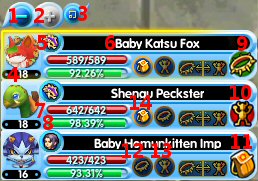
Pet Panels (Show/hide with ctrl+P)
- 1
- Decrease the number of panels displayed
- 2
- Increase the number of panels displayed
- 3
- Minimize the pet panels
- 4
- Pet's level
- 5
- Pet's type
- 6
- Pet's name
- 7
- Pet's health
- 8
- Pet's belly or hunger level
- 9
- Pet currently summoned
- 10
- Pet currently fused
- 11
- Pet currently stowed
- 12
- Summon pet
- 13
- Fuse pet
- 14
- Stow pet
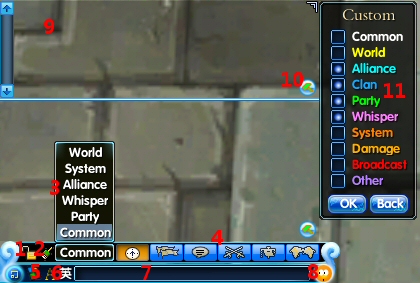
Chat Panel
- 1
- Enable/Disable autoscrolling
- 2
- Clear chat history
- 3
- Choose chat channel to listen to
- 4
- Choose channel to speak to
- 5
- Change the chat panel background darkness
- 6
- Shows your current input language
- 7
- Text input area
- 8
- Special emoticons
- 9
- User defined settings chat area
- 10
- Customizes what information will be displayed in the pane
- 11
- The types of information that can be customized
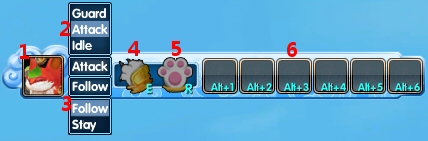
Pet Shortcut Bar
- 1
- Open pet menu
- 2
- Change pet's combat behavior
- 3
- Change pet's movement behavior
- 4
- Have your pet attack the current target
- 5
- Have your pet stop attacking
- 6
- Pet skill shortcuts, drag skills here to use them more effeciently
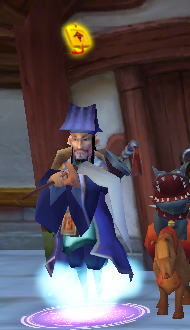
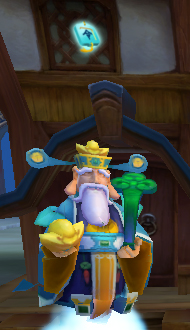
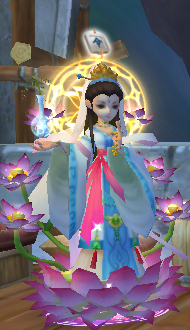
Overhead Indicators
- 1
- Has an important quest for you
- 2
- Has a quest for you
- 3
- Has a quest, but you haven't met the requirements yet
- 4
- Can complete an important quest
- 5
- Can complete a normal quest
- 6
- Ends a quest, but you haven't met the requirements yet
Combat
Combat
Press Tab to select the nearest enemy.
You can put your favorite skills and actions in your shortcut bars (the panels to the bottom and left of the screen). You can double click the icon, or press numbers 1-7 and F1-F8 to use them.
Combat
Killing monsters gives you Experience and Spirit.If you complete a quest you may also get other rewards. You can press Q to open your quest panel and check.
Controls
Controls
Press F9 to switch between normal mode and the photo mode.
Controls in Photo Mode:
Camera Forward Home
Camera Backward End
Camera Left Delete
Camera Right Pagedown
Camera Up Insert
Camera Down Pageup
Zoom-in Ctrl+Home
Zoom-out Ctrl+End
Move your character or press F9 again to exit Photo Mode.
Controls
Mouse Buttons: You can perform most basic game actions with your mouse.
Left-click: on a location to move there; select objects (such as monsters, NPCs, or players) by clicking on them; or on an item on the ground to pick it up.
Double-click: on an item in your bag to equip it or use it.
Right-Click: on a spot, hold, then move the mouse to adjust the camera angle; on an item in your Bag to equip it or use it; on a player's avatar after selecting them to begin and end interaction.
Mouse Scroll: to zoom-in and zoom-out.
Controls
Q: Quest List
U: Actions
K: Skills
T: Party Settings
M: Map
C: Character Info
B: Bag
L: Help
G: Clan/Alliance
F: Friend List
(Hold Alt and press the hotkeys to access their functions during your chat)
Alt+H: Hide All User Interfaces
Tab: Auto-targeting
PrintScreen:Screenshot
Screenshots will be save in:
\element\screenshot
Ctrl+Enter or Enter:Send Message
Controls
Besides moving your character by left-clicking, you can also move it with keys.
Forward W
Backward D
Move Left(Rotate Left) A
Move Right( Rotate Right) S
Jump Space Bar
Quests
Quests
Press Q or ALT+Q to access your Quest list, in which you can view more details on the quests you have acquired. Click the + before a quest to view its sub-quests.
Quests
Click on the Track button in the Quest Menu to display the status of this quest on your screen. Click on Track again to turn off the quest status.
Quests
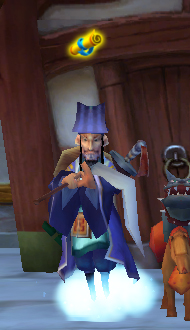
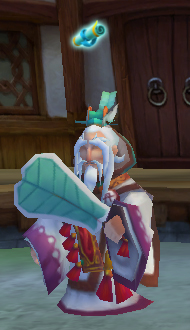
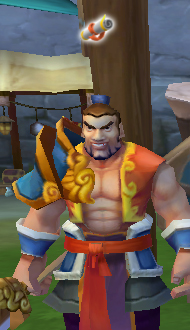
If you find an NPC with an open scroll icon above them, that means they have a quest for you.
A yellow scroll indicates that NPC has an important quest for you.
A blue scroll indicates that the NPC has a normal quest for you.
A grey scroll indicates that NPC has a quest, but you don't meet the requirements yet.
A yellow or blue closed scroll indicates you have completed the quest and can now turn it in.
A grey closed scroll indicates this NPC ends a quest you have, but you still need to complete it.
Shortcuts
Shortcuts
Did you know that if you press C it will open your character panel? This has all the information about your character. Try it out and take a look.
Another important shortcut is B which opens your bag. Everytime you get an item or pick something up it will automatically be put there.
Shortcuts
To help you on your adventures, there are special NPCs in Pokari who sell useful items.
Travel to Pokari and talk to the three sisters Tee, Doo and Quien. They will have everything for a friendly price.
But remember, to buy something from them, you'll need Etherbucks. You can buy them online or trade with other players.
Shortcuts
Skills will help you survive in the tough world out there.
Press K to open your skill menu, then click the + to upgrade your skills.
Upgrading your skills makes them more powerful, so don't forget this important task.
Shortcuts
Sometimes typing just isn't enough to really show how you feel.
Press the U key to open your expressions menu. Here you'll find all kinds of handy actions that will let everyone know how you really feel.
Shortcuts
Have you ever wondered how you fare against the best players out there?
Press the I button to bring up the rankings screen. Here you can see which players have been giving it their all.
Shortcuts
Fighting by yourself is no fun!
Press T to open up the party menu. Here you can search for other players who are trying to accomplish the same things. Get together to accomplish your goals as a team.